Install nginx on Ubuntu LTS 24.04

Install apache on Ubuntu in 3 steps
Share
Install nginx on Ubuntu LTS 24.04
  1. Update the Ubuntu systemYou can do that with the command in the Command line.
sudo apt update && sudo apt upgrade -y
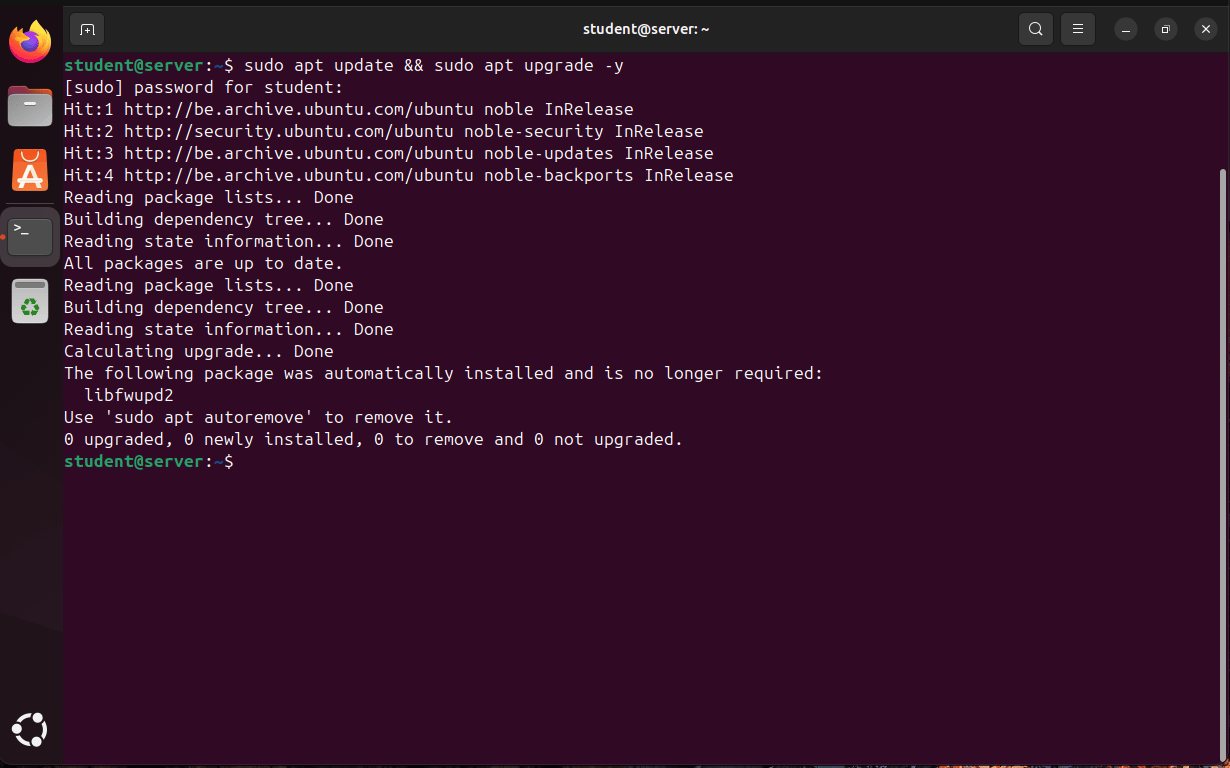
Screenshot of an Ubuntu 24.04 desktop showing the Terminal application after running sudo apt update && sudo apt upgrade -y. The output indicates that all packages are up to date, with no packages upgraded, installed, or removed. The terminal prompt returns to student@server:~$, confirming the update process completed successfully.
  1. Install the nginx package for Ubuntu Linux
sudo apt install nginx -y
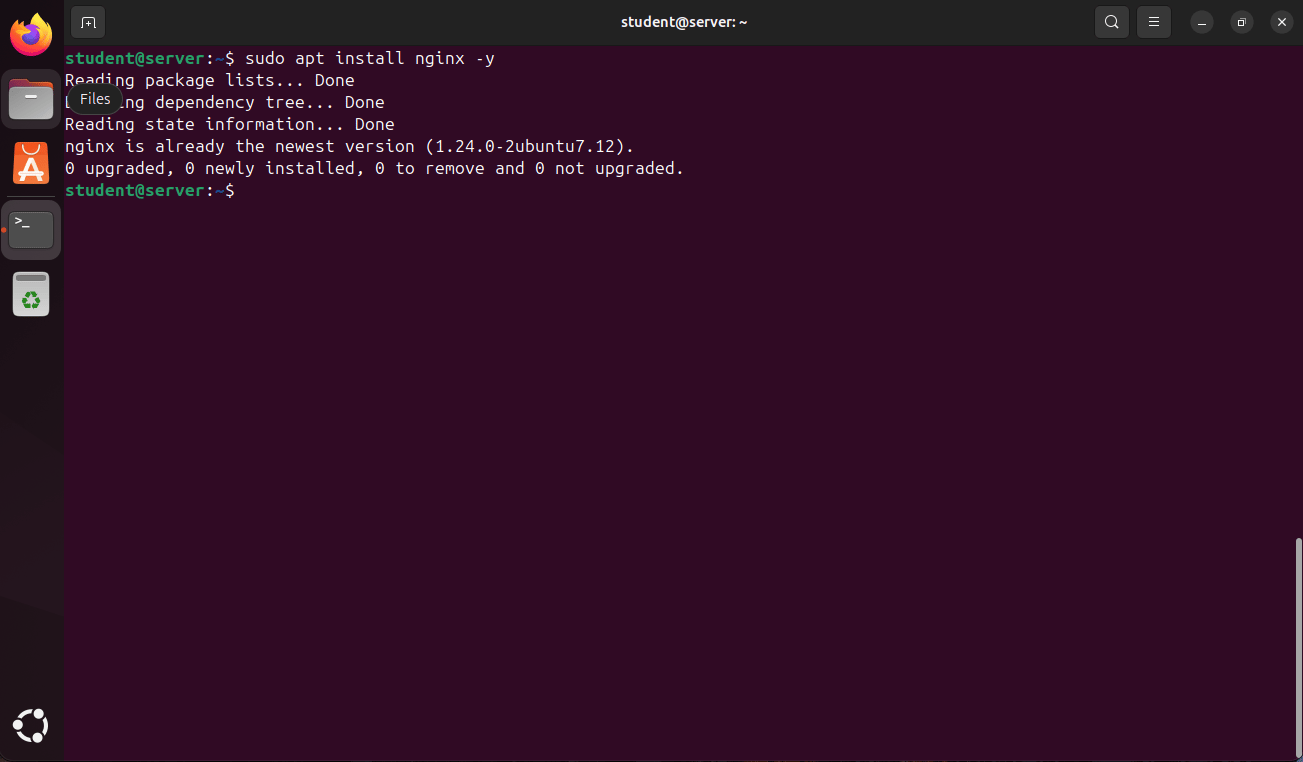
Screenshot of an Ubuntu 24.04 Terminal window showing the command sudo apt install nginx -y. The output confirms that nginx version 7.12 is already installed and up to date, with no new packages installed, removed, or upgraded. The command prompt returns to student@server:~$, indicating the installation check completed successfully.
  1. See if nginx runsYou see if the package runs by typing the next command or going to your web browser and search for http://localhost.
sudo systemctl status nginx.service
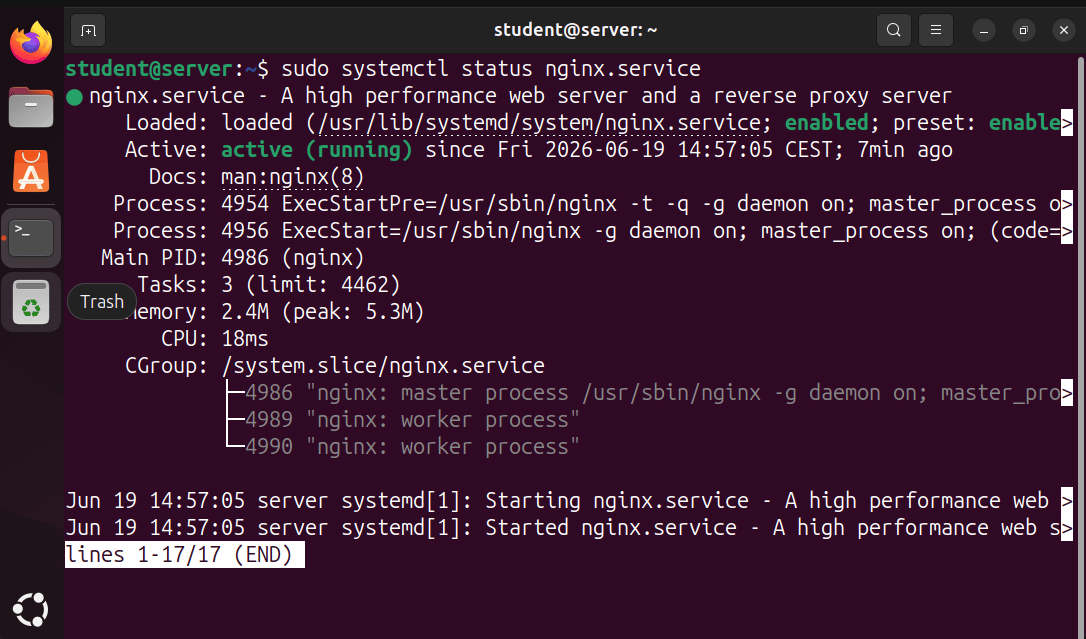
Screenshot of an Ubuntu 24.04 Terminal window displaying the output of sudo systemctl status nginx. The status shows the Apache HTTP Server (nginx.service) is loaded, enabled, and actively running. Details include the service process ID, memory usage, CPU time, and startup logs confirming that nginx started successfully. The terminal highlights Active: active (running) and Enabled: enabled, indicating the web server is operational and configured to start automatically at boot.

Active: means that it is running on the computer.

Enabled: means that it automatically startups as the computer boots
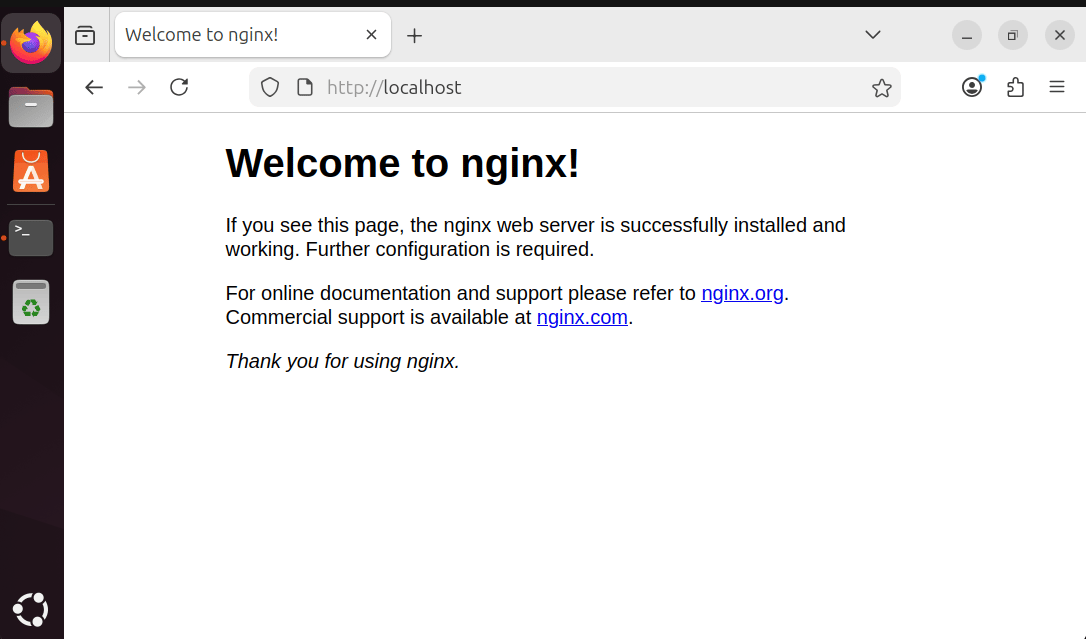
Screenshot of the Firefox web browser on Ubuntu 24.04 displaying the Nginx Default Page at http://localhost. The page shows the heading “Welcome to Nginx! Thank you for using nginx.