Getting Started with IIS: How to Install the Windows Web Server
Install Windows IIS Web Server in 10 steps
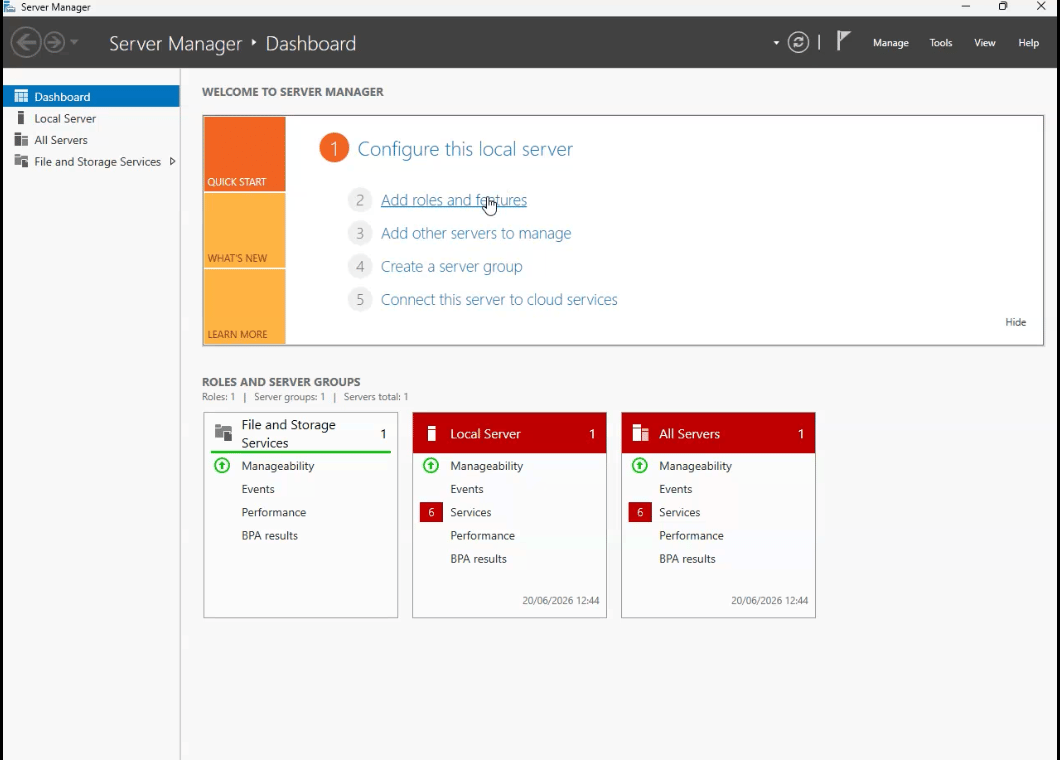
- Go to the Windows Server manager and click on “ Add Roles and Features”
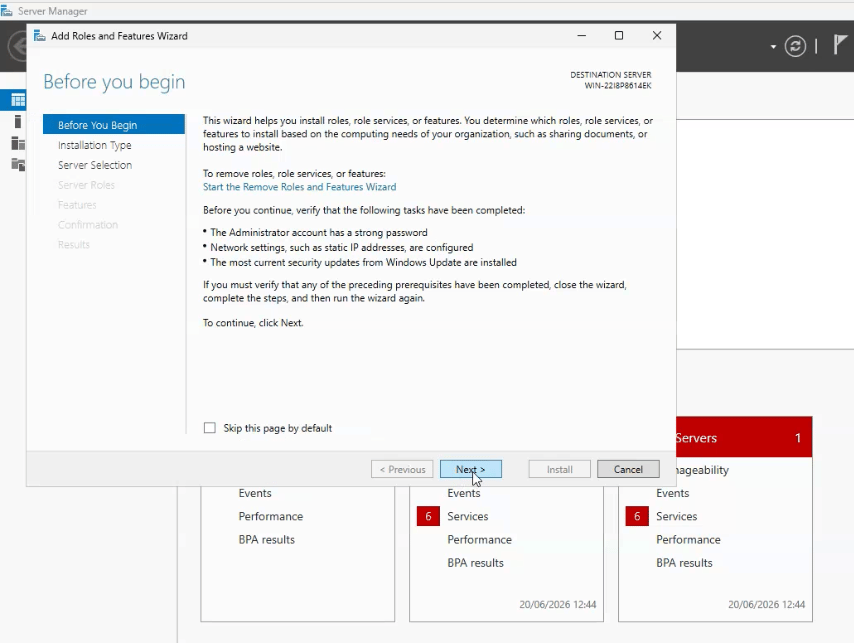
- In the first window, click NextThis screen appears because Windows Server wants to ensure that all necessary requirements and best practices have been checked before a new role or feature is installed. It helps reduce installation errors and improves server security and stability.
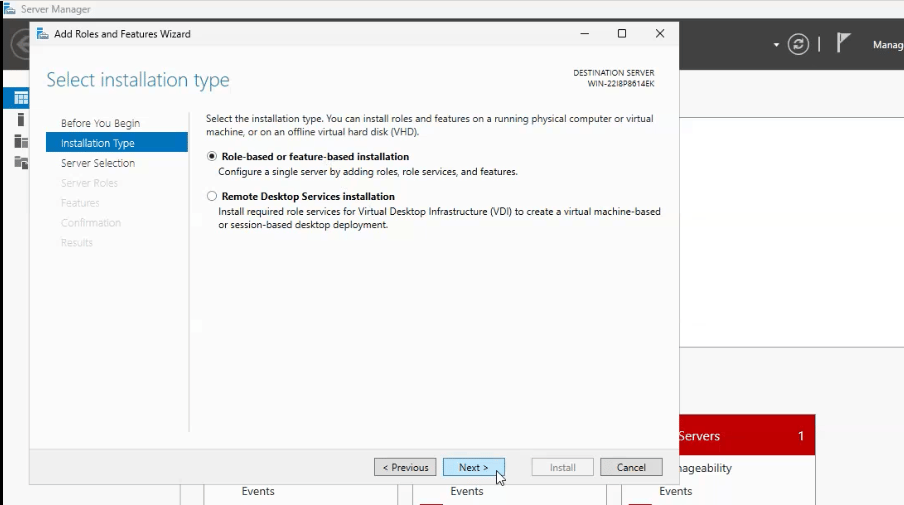
- We are going to select “Role-based or feature-based installation “ and click on “Next”
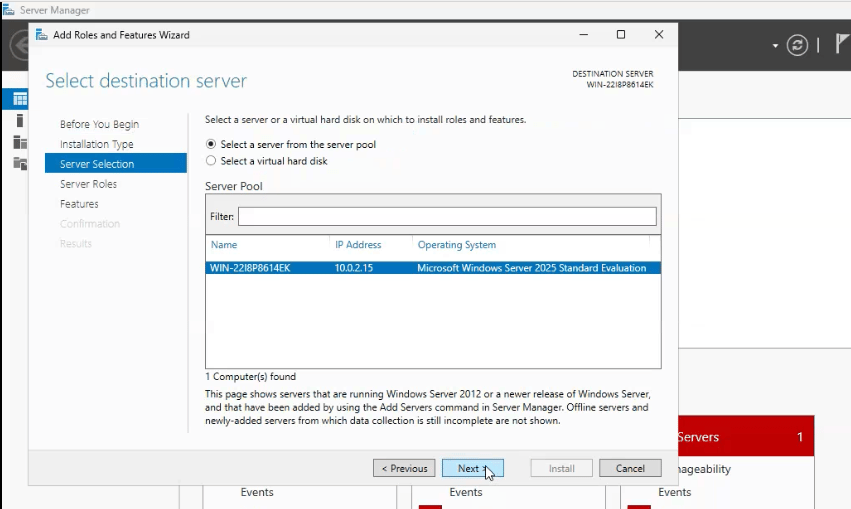
- Select the destination server from the server pool and click on nextIn the Select destination server you can choose on which server the role or feature is going to apply.
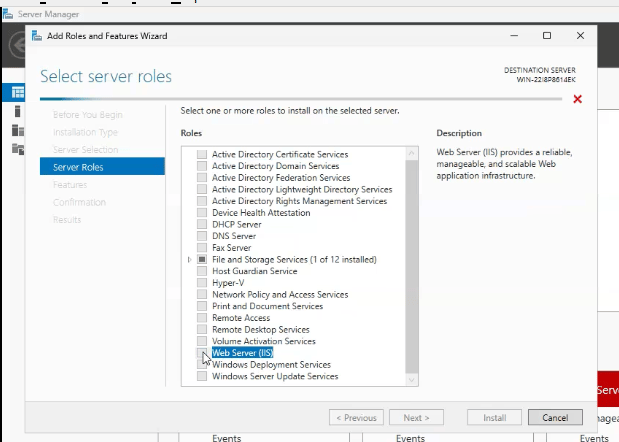
- For the server roles you are going to select “Web Server (IIS)”
- Just click on “Add Features”
![A screenshot of the "Add Roles and Features Wizard" in Windows Server Manager. A pop-up window titled "Add features that are required for Web Server (IIS)?" has appeared over the main wizard. It shows that "[Tools] IIS Management Console" under "Management Tools" is required. The checkbox for "Include management tools (if applicable)" is ticked, and the mouse cursor is hovering over the "Add Features" button.](https://storage.ghost.io/c/b7/e7/b7e7bcf5-fb93-4982-800c-041bd56ad189/content/images/2026/10/screenshot_from_2026-06-23_17-01-57-t-1782226926.png)
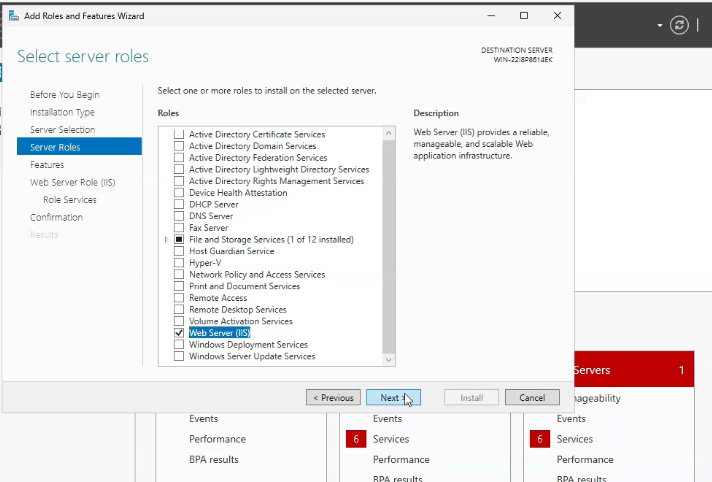
- You will then be redirected to the “Server Roles” tab, where you can click “Next.”
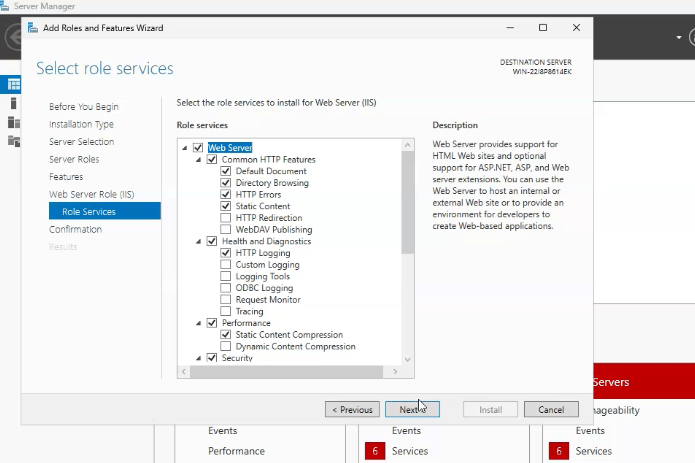
- The default “Role Services” are already enabled in this menu. You can change this later if you wish. Click Next to continue.These options enable specific IIS web server features like serving web pages, logging activity, compression, and security controls. For most websites, just enable the basic HTTP features and any authentication/security options you actually need.
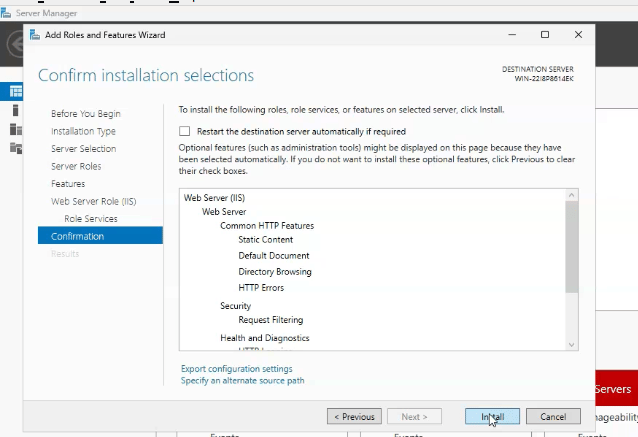
- Finalize the IIS Installation and click on install
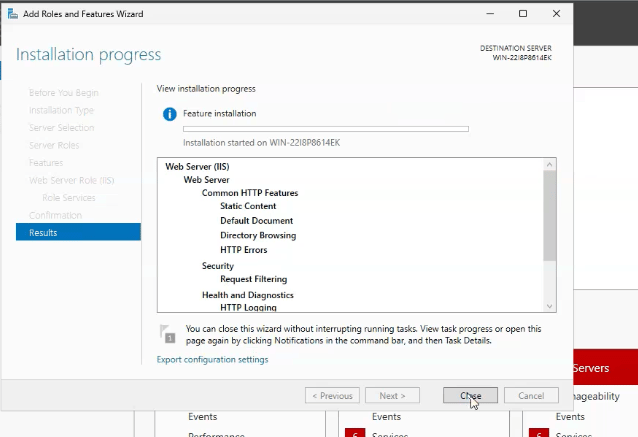
- View Installation Results and CloseThe installation will run in the background
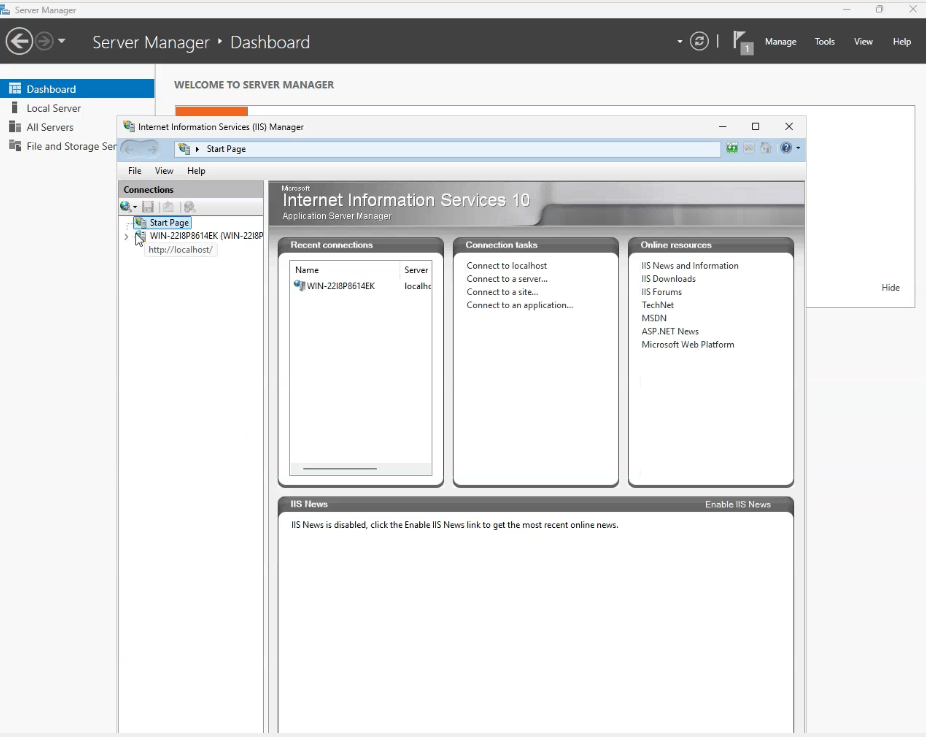
- When the installation is done, you can open the IIS Manager via the search bar
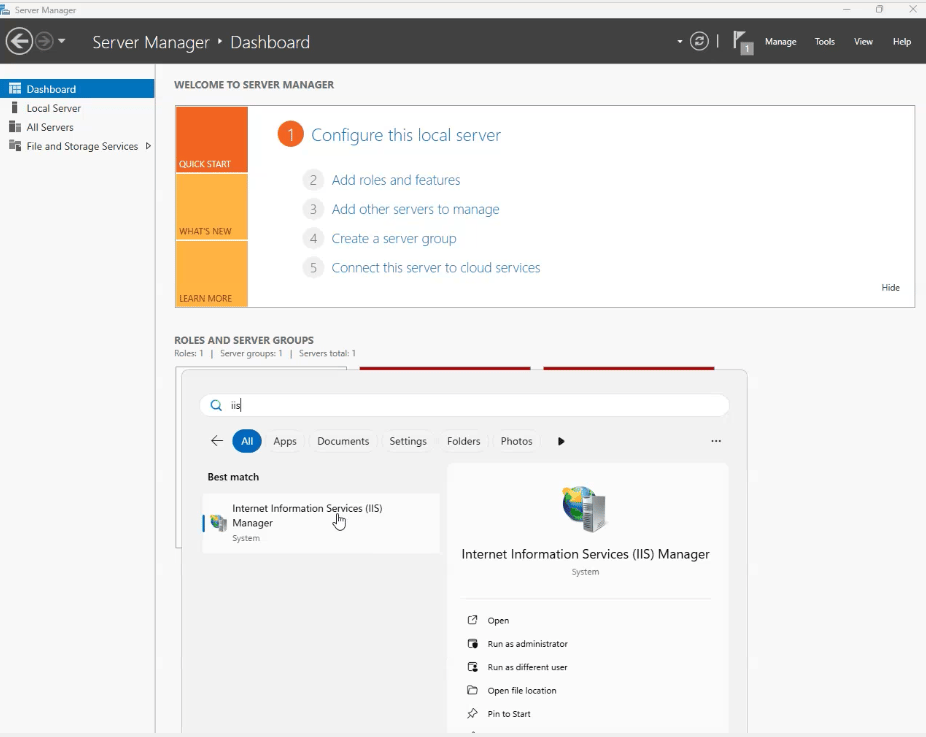
- Once the application opens, you are ready to start configuring your server.